
Meeting notes can quickly become scattered across notebooks, email drafts, chat threads, and digital files, making important details harder to find when they are needed. Digital paper tablets aim to bring writing, document review, and action items into one focused workspace. The challenge is choosing a device that feels comfortable to use while also connecting smoothly with the apps, storage systems, and workflows already used throughout the workday.
What Digital Paper Tablets Actually Are
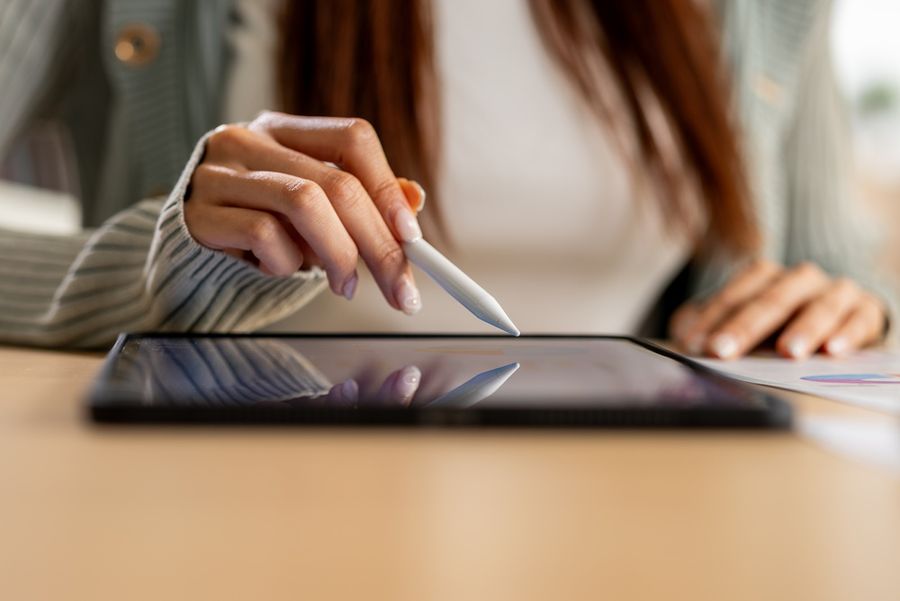
Digital paper tablets are pen-based devices built mainly for handwriting, reading, and document review. Many use low-glare electronic paper displays and simpler software than a standard tablet. The goal is not to run every office program. It is to create a focused surface for notes and documents without the alerts, browser tabs, and app switching that can interrupt a meeting.
The category includes focused paper tablets, reader-first devices with notebook tools, and broader tablets that offer strong pen support. Those approaches may look similar on a desk, but they solve different problems. A focused model may organize handwritten notebooks well, while a reader-first device may be better for books and occasional notes. A full tablet can handle more apps, but it may bring back the same distractions the buyer hoped to avoid.
Popular Digital Paper Brands and Models
Several well-known brands take different approaches to digital note-taking. The reMarkable Paper Pro focuses on distraction-free handwriting and color document review, while Amazon’s latest Kindle Scribe models combine notebooks with a large e-book platform and connections to services such as OneNote, Google Drive, and OneDrive. The BOOX Note Air4 C runs Android and supports third-party apps, making it more flexible for workers who need access to familiar productivity tools.
Other choices include the Supernote Manta, which emphasizes organized notebooks and replaceable internal parts, and the Kobo Elipsa 2E, a reader-first device that also supports handwritten notebooks and PDF markup. Buyers should compare each model’s export options, supported apps, cloud connections, and document tools rather than choosing only by brand recognition.
How a Work Note Moves Through the System
A useful meeting note workflow starts before the meeting. The user creates a notebook or template, adds the date and purpose, and leaves space for decisions, questions, and follow-up tasks. During the meeting, handwriting keeps the screen simple and makes it easy to circle, underline, or sketch connections without changing apps.
The important step comes afterward. Notes need to be named, filed, searched, converted, exported, or shared. Some systems can sync files across desktop and mobile apps, import common document types, and send completed pages to outside storage. For example, reMarkable supports Wi-Fi syncing, PDF and EPUB imports, several export formats, and direct uploads to Google Drive, Dropbox, or OneDrive. That does not guarantee a smooth company workflow, but it shows the types of handoff tools worth checking.
Test the whole route before committing. Ask how a handwritten action item reaches the team’s real system of record. If the answer involves screenshots, repeated exporting, or manual retyping, the tablet may reduce paper clutter while leaving the larger productivity problem untouched.
Who Benefits Most
Digital paper works best when handwriting and document review already play a clear role in the day. The strongest fit is not based on job title alone, but on what repeatedly happens between meetings.
- A manager who attends several meetings and reviews notes afterward: A focused notebook can keep decisions and follow-ups together, provided the files can be searched or moved into the team’s normal tools.
- A professional who marks up long PDFs or reports: A larger writing surface can make comments, highlights, and page review more comfortable than working on a phone or small laptop screen.
- A worker who thinks better by writing than typing: Handwriting can remain the first capture method while selected notes are converted or shared later.
- A traveler who wants fewer loose papers: One device can hold notebooks and reference files, but only if company security rules allow the chosen cloud and transfer methods.
A person who mainly types, edits spreadsheets, works in browser-based systems, or responds to messages throughout the day may gain less. In that case, a lightweight laptop or standard tablet may cover more of the actual workload.
The Real Downsides
The first drawback is workflow isolation. Each platform has its own rules for syncing, exporting, handwriting recognition, and outside integrations. A device may back up notebooks successfully but still limit where handwritten comments can be viewed. Amazon, for example, states that text annotations can sync across Kindle surfaces, while handwritten annotations are currently accessible only across Kindle Scribe devices. That kind of boundary matters when coworkers need access from ordinary computers or phones.
The second limitation is that digital paper is not a full laptop replacement. Email triage, live collaboration, presentation editing, spreadsheets, video calls, and specialized business software often remain easier or only possible on another device. Adding a keyboard can help with short typed passages, but it does not automatically turn a focused note tablet into a complete workstation.
There is also a risk of creating duplicate habits. A worker may write on the tablet during meetings, type separate task lists afterward, and still keep paper nearby for quick reminders. Unless the new device replaces a defined step, it can become one more place to check.
Cost and Commitment Factors
Workplace device costs go beyond the tablet itself. A pen may be included or sold separately, while protective covers and keyboard cases can increase the total commitment. Some platforms also reserve expanded cloud storage, app editing, search, or advanced conversion tools for a subscription.
Time is another cost. Existing notes may need to be imported, folders designed, templates created, and coworkers taught how shared files will arrive. A buyer should also check whether the employer permits the device to connect to company storage or hold confidential documents. A technically capable tablet may still be unsuitable if it cannot meet workplace security rules.
Replacement and platform risk matter as well. Pen tips, chargers, cases, and keyboards may use model-specific designs. Notes should be exportable in common formats so a future device change does not trap years of work inside one account.
How to Decide Whether Digital Paper Fits
Start with the most frustrating note problem. If important decisions disappear across notebooks and files, prioritize search, naming, folders, and reliable sync. If document review is the main burden, prioritize screen size, PDF handling, annotation export, and how comments appear to other people.
Next, identify the laptop replacement limits that are acceptable. A worker who only needs focused handwriting during meetings can keep the laptop for everything else. Someone hoping to replace a laptop during travel should list every required task and confirm that the tablet can complete each one without a workaround.
The practical judgment is simple: integration deserves more weight than pen feel for most office buyers. Writing comfort matters every day, but a slightly less paper-like device may create more value if its notes move cleanly into the company’s shared folders, calendar, task system, and document process. Before buying, run one sample meeting note from capture to final follow-up using the platform’s actual apps and export tools.
Keep Notes Connected to the Work
Digital paper can reduce scattered notes when it replaces a clear part of the existing process. It becomes another disconnected system when the user chooses the writing surface first and studies the workflow later. Map one real meeting from preparation through task follow-up, then choose only a device that can support every handoff that matters.